Sale plans
Run more than one sale for the same event - a coach sale and a general sale, say - with separate groups and dates for each, and one squad shared between them.
Most events have one sale. Some have several: a coach package sale weeks before the general sale, a presale and the main sale, or a resale round once the first one's over. Each one needs its own buying groups and its own date, and it's the same people in all of them. Sale plans let one squad run every one of those sales inside one event, without setting up a second event or asking anyone to join twice.
Glastonbury is the obvious case, where the coach sale and the general sale are separate mornings with separate queues, but nothing here is tied to it. Any named-ticket event can use sale plans. Transferable events have no buying groups, so there's nothing to arrange into plans and the controls don't appear.
What a sale plan is, and what stays shared
A plan is one sale's arrangement: its buying groups, who's placed in which group, who administers each group, who's buying in that sale, and which sale date it's for. Every plan on an event answers those questions for itself, and changing one never touches another.
Everything else is shared across the whole event, however many plans it has:
- the people - the squad is one squad, and nobody joins a plan;
- their answers to the event's questions, and whether they're coming to the event at all;
- their privacy choices and the event's privacy mode;
- whether they already have a ticket, wherever it came from;
- who coordinates the event.
The arrangement you had before you turned sale plans on becomes your original board. It keeps its groups, its people and its admins, and you give it a name. Every plan you add after that starts from nothing, or from a copy of one you've already got.
Only one sale runs at a time. These pages call it the running sale; the app calls it the operating sale, and its plan carries an Operating badge wherever plans are listed. A plan you're preparing while another sale runs is provisional. The sale you're looking at on any page is the selected sale, which isn't the same thing as the running one, so you can spend all afternoon on a provisional plan while the running sale carries on without you. Open the Groups page or the sale day tab without choosing a plan and you land on the running sale, or on the next sale to come while none is running. A plan with no announced date shows Date TBC, and no countdown is shown for it.
Turning sale plans on
A coordinator turns sale plans on per event, from the event's settings. You name the board you've already got, then name a second plan to prepare alongside it. Nothing on the board you have moves: the same groups, the same people, the same admins, now under a name.
On the web the Sale plans section is on the event settings page, for named-ticket events.
Sale plans are being switched on for everyone shortly, on the web and in the app, so if you can't see them yet, that's why.
This cannot be undone. An event that uses sale plans keeps named tickets for good, so it can never be switched to transferable - not even after you turn these tools back off.
That's the one part of turning sale plans on you can never take back. The setup itself stays reversible: rename plans as often as you like, delete one that hasn't run a sale, turn the tools off again whenever only your original board is in use. Some of what you do with plans later is permanent in its own right, like cancelling a sale or deleting a plan with its arrangement, and each of those is covered where it comes up. There's no support route round the ticket-mode lock either, so if your event might turn out to have transferable tickets, settle that first.
Turning the tools off hides the plan controls in settings and the plan switcher on the Groups page. It deletes nothing and flattens nothing. Your plans are still there and still in use, and turning the tools back on puts everything where you left it. While they're off, the Groups page shows your original board, and the sale day tab still lists your sales and asks you to pick one when you open it without a sale named. You can't turn them off while another sale still has people in it, while another sale is running, when every sale is finished (there'd be nothing left to run), or when your original board is finished and another plan isn't. Each refusal says what to do first.
Your plans
The Your plans list in settings shows every plan on the event, cancelled ones included: its name, an Original board badge on the one you started with, whether it's Finished, Cancelled or Operating, and its date or Date TBC. From here you can:
- Add another plan. It starts empty, with no date and everyone who needs a ticket counted as buying.
- Copy an arrangement. Start a new plan from the groups and placements of one you've already got, a finished or cancelled one included, with Create from this plan. Ticket confirmations, results and sale-day links don't come with it - the new plan starts fresh. Group admins come along only if you tick Copy group admins too, which is off by default, because being a group admin is a job for one sale.
- Rename any plan, including your original board.
- Move up and Move down. The order is how the plans are listed, nothing more.
- Delete a plan you added that's still being prepared and has never run a sale. If it holds an arrangement you're asked first, with what would go with it - so many groups, placements, helpers or answers - and Delete plan and arrangement takes the lot. Nobody leaves the event, and no other plan is touched. Your original board, the running sale, a finished or cancelled plan and any plan that has run a sale offer no Delete at all: they keep their history. One that's still being prepared can be cancelled instead.
Cancelling a sale isn't the same as deleting its plan; it's covered under making a sale the running one. A cancelled plan stays in this list so you can copy its arrangement, and drops off the plan switchers on the Groups page and the sale day tab.
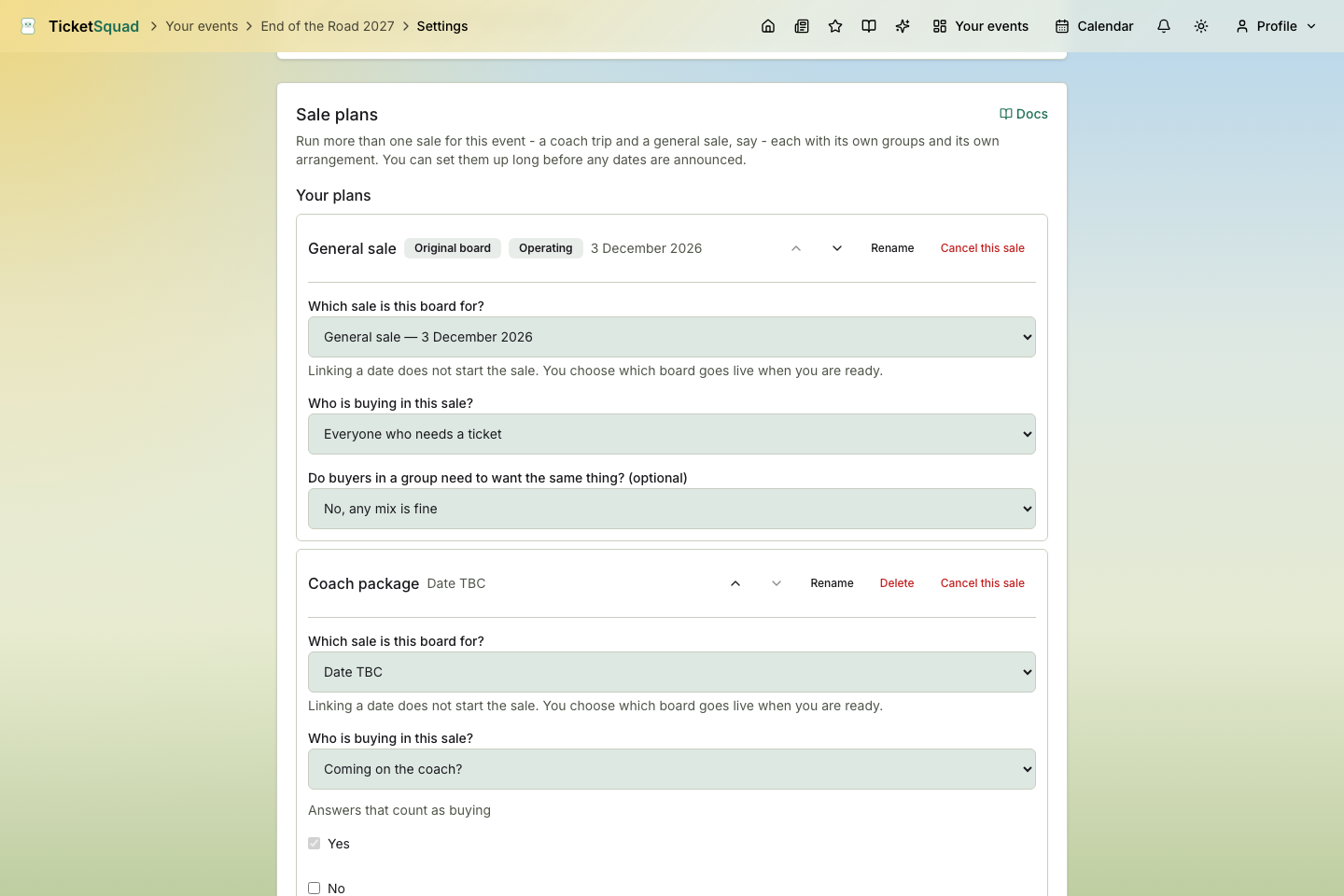
Which sale a plan is for
Each plan has a control headed Which sale is this board for? It lists the event's sale dates, the ones on the event's schedule, and you pick one or leave it at Date TBC. If the sale you want isn't on the list, add it to the event first, under Dates in settings, with Add another sale date (on a known event, choose Provide your own dates first). A board set up before this control existed shows Follows the event's sale date until you pick one. If the sale date a plan pointed at has been taken off the event since, the control says That sale is no longer on this event rather than guessing.
An event with no sale dates yet can still have plans. Get the groups organised now and come back to link each board once the dates are announced.
For the plans you add, take the sentence under the control literally: Linking a date does not start the sale. You choose which board goes live when you are ready. A plan you added is a dated plan and nothing more until a coordinator approves it, which is its own step.
Your original board is the exception. It was already your event's sale, so once sale plans are on it becomes the running sale the moment it has a date, with no approval in between. If it already had one when you turned the tools on, it's running from that moment. That doesn't shut anything down while you set it up: you can still rename it, change its date, change who's buying, move people between its groups, and use Review who is buying and Cancel this sale, plus Make ticket holders helpers while its date is still to come. What it does mean is that the board shows Operating, the sale day tab opens on it, the scheduled sale-day work (the reminders and the backup files) is its, and anybody buying in it who gets a ticket in one of your other sales becomes a helper here.
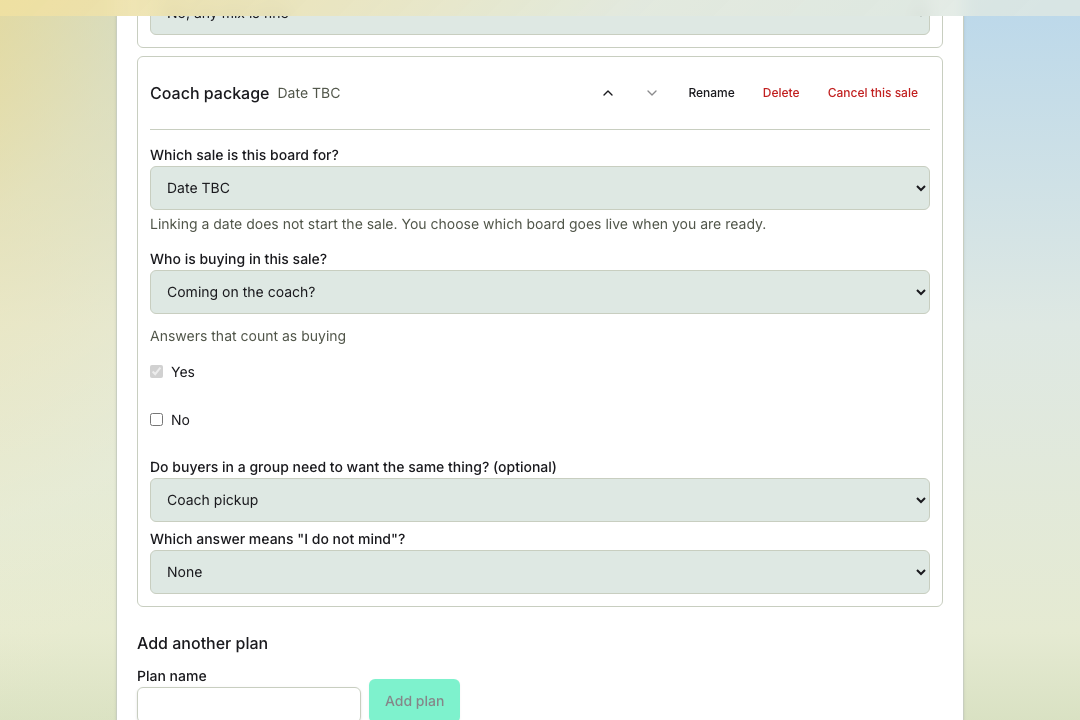
Who is buying in each sale
Not everyone in the squad buys in every sale. Each plan answers Who is buying in this sale? one of two ways:
- Everyone who needs a ticket - the default.
- Answers that count as buying - pick one of the event's questions and the answers that make somebody a buyer. You can only use yes/no and pick-from-list questions, a question marked private is out, and at least one answer has to count.
In any one sale, each person is doing one of two things:
- Buying - they need a ticket from this sale, so they take a place in a buying group.
- Helping - they buy for others and take no buyer place. It says nothing about whether they're coming to the event. Helping in the coach sale only means they aren't buying a coach ticket. Somebody who already has a ticket becomes a helper once the handover or a late ticket moves them, and takes no buyer place then either.
Anybody who's said they aren't coming to the event helps in every sale, and anybody who has left the event is in none of them.
Each person's badge reads Buying or Helping. Everybody is one or the other, so a buyer the app hasn't placed anywhere else just reads Buying. A mark on the badge says the app worked the answer out rather than being told. A question mark means assumed: a helper who hasn't answered the question the sale uses. A tick means by rule, so either their answer to that question or their saying they aren't coming decided it. A helper who already holds a ticket wears the gold ticket instead, because the ticket is why they're helping. Screen readers hear the same thing in words: Helping · assumed, say, or Helping · by rule · has a ticket. Open the badge and it explains itself.
A coordinator can set either state for anyone. So can a group admin, for somebody placed or helping in their group on that plan, as long as the event lets group admins manage their groups (the Member permissions setting, on by default). It's on the person's row, under Participation in this sale, next to Use the plan's rule, which forgets the stored choice so the plan's own rule and the assumption apply again. Once a sale has finished or been cancelled, who was buying and helping in it is its record, and none of this is offered on it any more.
On the web the choices are in the menu on a member's row on the Groups page, under the selected plan.
The Groups page carries a Who is doing what summary with four counts: Buying, Helping, Buyers needing a group and Helpers needing a group. The first two add up to everyone taking part. The last two are the slice of those first two who aren't in a group yet, so don't try to add all four together. A row worth a coordinator's attention carries Needs review, which means somebody holding a buyer place in a group while not buying in this sale, or somebody whose answer has changed since they were arranged.
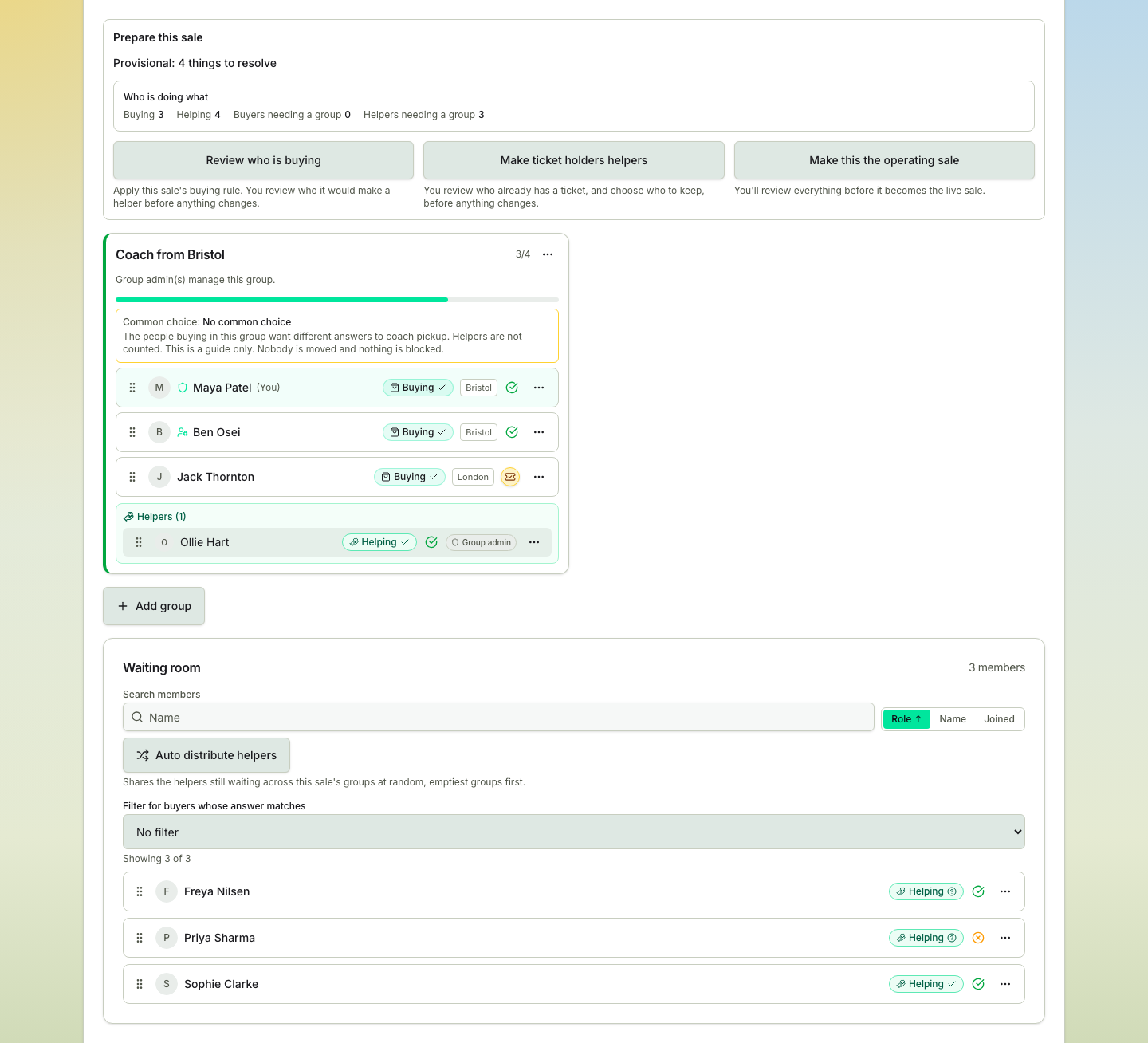
When a plan works out its buyers from an answer, a coordinator can press Review who is buying. It shows Who this rule says is buying in groups: who's buying already, who'd become a helper from their answer, and who'd become a helper because they haven't answered. It also shows who it leaves alone, which is people who already have a ticket (that's the handover, reviewed separately), people whose answer you aren't able to see, and people with an answer of their own that no longer matches the rule, which this step never overwrites. Nothing changes until you press Apply to the people I have kept, and you can untick anybody first.
On their own My data page, anybody the app has assumed is helping sees a notice headed We have assumed you are helping. It names the question and every sale it affects, and answering the question is what changes it. It never marks the question as answered for them, and it never says they aren't coming.
Two smaller dials sit with the buying rule. Do buyers in a group need to want the same thing? is optional: pick a question and, if there is one, the answer that means "I do not mind", and every group card shows its Common choice. Helpers aren't counted, and it's a guide only - nobody is moved and nothing is blocked. Once a plan depends on a question, the field editor names the plans that use it. While any plan does, you can't delete or hide that question, mark it private, change its type, or take away an answer a plan relies on. Renaming it, adding answers and dropping answers no plan relies on all still work.
Pick a question here and it follows the sale to sale day. Each person's answer sits on the checkout board beside the answers they have to type in, and the group's shared answer reads above them, so whoever's buying can check where everyone's getting the coach from before they book it. It's there whether or not the question was a required one, because by then it's part of what you're buying.
Groups belong to a plan
Every buying group sits on exactly one plan, and the Groups page shows one plan at a time. When the tools are on and the event has more than one plan, a switcher above the roster picks which. Cancelled plans are left out of it.
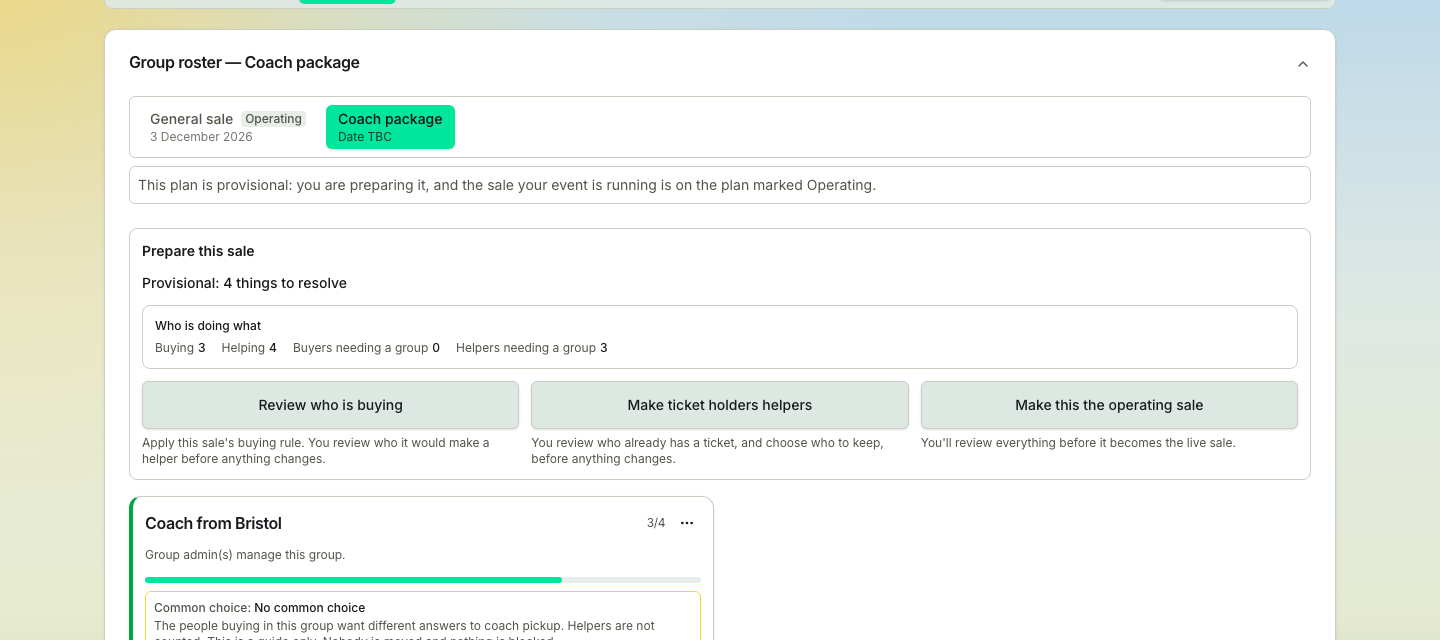
A row of links, one per plan, each with its date or Date TBC. The plan running the sale carries an Operating chip, whichever plan you have selected. The roster heading names the selected plan, and the link keeps that selection in the page address, so you can send someone straight to a plan.
Select a plan that isn't the running sale while another sale is running and the page says so: this plan is provisional: you are preparing it, and the sale your event is running is on the plan marked Operating. That's the state to expect while you build the next sale. Everything you do on the Groups page, from creating groups to placing people, appointing admins and setting who's buying, lands on the selected plan and nowhere else. Groups from another plan don't appear, and one person can be in a group on each sale.
A group admin administers one group on one plan. A helper docked to a group can be its group admin too, and the roster shows a Group admin badge on that helper's row. That's how a coach organiser who already has their own ticket can still run the coach group.
The waiting room holds the people who aren't in a group on this plan yet, and it has two tools for filling groups. When the plan has a common choice and more than one person is waiting, Filter for buyers whose answer matches narrows the list to buyers whose answer matches the one you pick, counts "I do not mind" as a match, and hides helpers and anybody who hasn't answered. Not answered yet lists just the buyers who haven't, so you can chase them, and No filter brings everyone back. Filtering changes nothing. Each buyer there shows their answer, or Not answered. Coordinators also get Auto distribute helpers, which shares the helpers still waiting across this plan's groups at random, emptiest groups first, after a confirmation that says how many helpers are going to how many groups. Helpers already in a group stay put, and since helpers take no buyer place, none of a group's places go on this.
Turn the tools off and the switcher goes with them: the page shows your original board, whichever plan a bookmarked link asked for.
Is this sale ready?
Readiness is per plan, because each sale has its own groups and its own buyers. A plan is ready when nothing on this list applies to it:
- some buyers still need to answer the required questions;
- some buyers aren't in a group yet;
- this sale has no confirmed date yet;
- an earlier sale still needs its results reported;
- some people who already have a ticket are still in buyer places in this sale;
- no sale on this event has a confirmed date yet;
- the question this sale uses to work out who is buying is no longer available.
A plan at Date TBC is prepared exactly like any other, and the date reasons are the only ones it can't lose until a date is linked. So form the coach groups, place everyone and settle who's buying long before the coach sale is announced, if you like. The one thing you can't do is make it the running sale.
On the web, a coordinator sees the selected plan's state on the Groups page, either Provisional: ready to review or Provisional: 3 things to resolve, and the reasons themselves in the approval review. In the app, the Groups screen lists them under This sale is ready to run or Before this sale can run. The readiness banner on the event page is about the event as a whole and doesn't name a sale.
You can generate the offline backup files for a plan at Date TBC to see what the pack will look like. The files say the sale can't be run until a date is set.
Making a sale the running one
Apart from your original board, which goes live as soon as it has a date, nothing goes live on its own. On the Groups page, coordinators get a Prepare this sale group for the selected plan. It starts with the plan's state (Finished, Cancelled, Operating, or provisional with how many things are left to resolve) and, while no sale is running, a line saying so. Then come the Who is doing what counts and the actions, in the order you'd use them and each with a line saying what it does: Review who is buying, Make ticket holders helpers and Make this the operating sale. Only the ones that apply to the plan show up, and reading the group changes nothing.
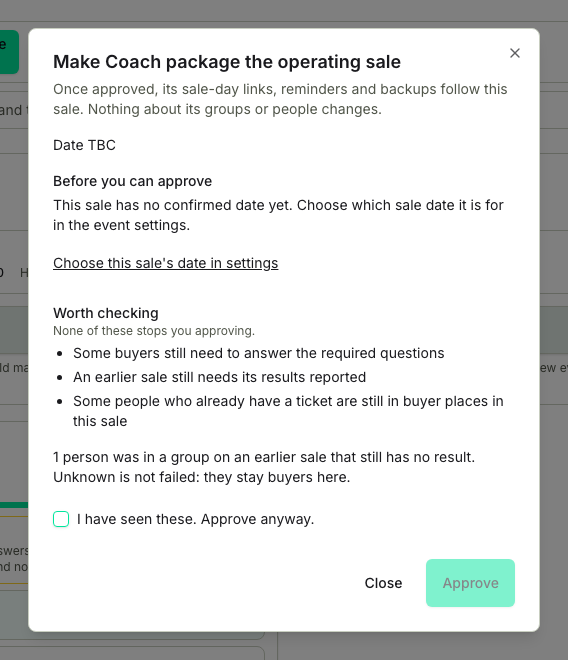
Make this the operating sale opens the review. It names the plan and its date or Date TBC, and says what approving means: once approved, the sale-day links, reminders and backups follow this sale, and nothing about its groups or people changes. Then it tells you whether you can:
- Before you can approve lists the one thing stopping you, if there's one. That's sale plans not being on for the event; the plan being finished or cancelled; no confirmed date, with a link to choose one in settings; or people who already have a ticket still sitting in buyer places, with a link to Make ticket holders helpers.
- Worth checking lists the readiness reasons still open on this plan, and whether the sale's date has passed. None of those stops you approving, with one exception: people who already have a ticket still in buyer places will, as soon as nothing else is in the way.
- If another sale is running, the review names it and says what approving does. This plan becomes the running sale instead, and the other one stays exactly as you prepared it, so you can make it the running sale again later. You tick Switch the live sale to this one to go on.
- If people in this sale were in a group on an earlier sale that still has no result, the review says how many. Unknown isn't failed, and they stay buyers here. You tick I have seen these. Approve anyway. to go on.
Press Approve and that plan becomes the running sale. If something moved while you were reading, like somebody else approving or a date changing, nothing happens and Refresh shows you the current review.
Ending a sale. Sale over is on the running sale's sale-day tab. On an event with sale plans it does what it's always done for that sale's groups, marking each group with no result and somebody still without a ticket as having missed out, and then it finishes the sale: it stops being the running sale, and another sale on this event can be approved after, from the Groups page. Each sale has its own Sale over, so ending the coach sale leaves the general sale untouched. The sale day page has the detail.
Cancelling a sale is in settings, on any plan still being prepared, the running sale and your original board included. Nobody can run that sale afterwards and you can't undo it, but its groups, placements, answers and results are all kept: it stays in settings, marked Cancelled, for you to copy its arrangement into a new plan. Cancel the running sale and nothing is running, with nothing taking its place until you approve another. A plan you added that has never run a sale can simply be deleted instead.
Two related things are worth knowing. Clearing the running sale's date takes it back to preparation, so it's no longer the running sale. And a sale that has finished or been cancelled can't run again: another round on that board needs a new plan, copied from its arrangement, with its own date, and then Make this the operating sale.
Sale-day materials belong to one sale
The sale day tab follows the selected sale. Its heading names the sale, then its date or Sale date TBC, then a line saying what you're looking at: the sale that's running, a preparation preview of a sale you're preparing, a sale at Date TBC, a finished or cancelled sale kept for its results and corrections, or the fact that nothing is running. Switching plans on the sale day tab doesn't start anything.
The full board, its Excel export and the offline backup files all name their sale, its date or TBC, and a revision, so you can tell saved copies apart. A board for a sale that isn't running says preparation preview on its face, and the export file is named after the event, the sale and the date. Checkout details appear only for people buying in that sale. Helpers are listed too, with nothing to copy, and on the board a group's helpers sit on one line beneath its buyers. Each group's backup link stays the same when that sale's file is rebuilt, and a link to an outdated file can stop showing checkout details until a current file is available.
In a Closed event, the sale-day reveals that let a successful group help a waiting one pair groups within one sale, and a group's help first and block lists are about the groups in its own sale. The coordinator's panel of live reveals is event-wide, and Sale over ends the live reveals belonging to the sale you ended, leaving any other sale's alone.
Sale-day instructions and reminders go to the people buying in that sale and the helpers docked to its groups, and every link in them opens that sale. If the sale has changed since, the link opens a page that says so and lets you choose. A message queued for a sale that stopped running before it went out is dropped rather than sent.
Results and tickets
Results are reported per board, on the selected sale: I got tickets for your group, then Who did you get tickets for?, then Record 2 of 4 or however many. A group on the coach plan and the same people's group on the general plan report separately, and each sale's results and celebration are its own. On an event that uses sale plans, the unfulfilled members list doesn't appear: the next sale is where the people still without a ticket are.
A ticket remembers where it came from. Either a result reported for a group in a particular sale named them, or the person told us they had one when they joined or on their own data page, or it's a record from before sale plans existed, which is credited to no sale rather than to an invented one. Undoing a report clears only the tickets that report handed out. Anything somebody brought with them stays exactly where it was.
A coordinator can put a sale's record right afterwards. Adjust, on each group's row of Ticket buying outcomes on that sale's sale day tab, lists the group's members ticked for whoever has a ticket now, and saving changes only what you changed. The sale day page covers what each change does.
Two things move somebody out of, or back into, a buyer place:
- A late ticket makes you a helper. If a buyer in the running sale turns out to have a ticket from somewhere else, because a result reported for their group in another sale named them or they said so themselves, they stop being a buyer there. Winning in the running sale itself changes nothing, since that's what buying there was for. Somebody in a group becomes a helper of the group they were buying in and keeps any admin role, and the app says so: Jack now has a ticket and is helping Coach from Bristol. One buyer place is available. Somebody not yet in a group becomes a helper without a group. This only happens on events with sale plans.
- Changing Buying and Helping moves the seat. Change somebody from Buying to Helping and they become a helper of the group they were buying in, keeping any admin role, and their buyer place is free for someone else. Switch somebody who helps a group back to Buying and they take a buyer place in that group again, admin role included, if it has room. If it's full, they wait in the waiting room.
The next sale: the handover
Once one sale has run, some of the people down as buying in the next one already have a ticket. Make ticket holders helpers, in the Groups page's Prepare this sale group, shows you exactly who and proposes making them helpers. It's for coordinators, on a plan that's being prepared, when the event has more than one plan. It isn't offered on the running sale, where a buyer who turns out to have a ticket becomes a helper straight away, as late tickets describes. Your original board before any sale has been approved is the exception: turning the tools on isn't an approval, and that board may hold ticket holders from before, so the handover is offered there while its date is still to come. It's also offered on any other sale whose date has passed already, for as long as that sale can still be approved.
The review is headed People in that sale who already have a ticket, and it says plainly that they're still down as buying and nothing changes until you apply it. People are grouped by why the app thinks they have a ticket: Got a ticket in another sale, Told us they have a ticket, and Have a ticket from before sale plans. Under each name it says where they'd go: will help in their group and stays a group admin, will help in their group, or will be a helper without a group. Group places after the handover shows what each group would look like with those seats freed. Results still unconfirmed lists people whose group in an earlier sale has no result yet; they stay buyers, and nobody is treated as having missed out. Could buy now lists people helping by a rule or an earlier handover who have no ticket and could be buyers, to change on their own row if they should be.
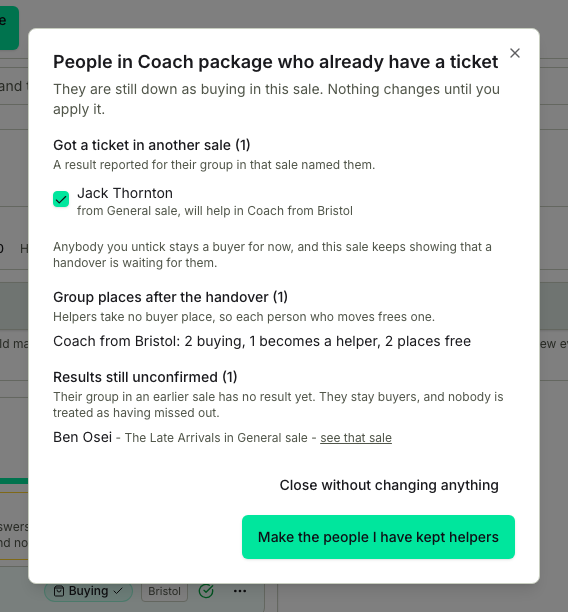
Untick anybody you aren't sure about, then press Make the people I have kept helpers. Anybody you unticked stays a buyer for now, and the sale keeps showing that a handover is waiting for them, which is one of the things that stops the plan being approved. If something about these people changed while you were reading, nothing is applied and you're asked to open the review again.
When something looks wrong
- A link to a sale that has gone. A link that names a plan this event no longer has, or one that changed underneath you, won't open it. The Groups page says That sale plan is not available on this event and shows another plan instead; the sale day tab says the sale is unavailable or changed, asks you to choose a sale and try again, and offers a Reload this sale button. Pick a plan from the switcher.
- "That sale is no longer on this event." The plan was linked to a sale date that's since been taken off the event's schedule. Pick another date, or put the date back on the event first.
- A plan with no Delete. Your original board, the running sale and any plan that has run a sale keep their history, so they can't be deleted. Cancel the sale instead if it shouldn't run; it stays in settings for you to copy from.
- A question you can't delete or change. A plan uses it to work out who's buying, or as its common choice, and the editor names the plans that do. Deleting or hiding it, marking it private, changing its type and taking away an answer a plan relies on are all refused; renaming it and adding answers aren't. Change the plan's rule first, or pick a different question.
- The buying rule stopped working. If the question a plan uses has been deleted, retyped, or has lost the answer the rule matches on, the plan says so and asks you to choose a different question in the sale settings.
- The plan controls have gone. Somebody turned the tools off. Your plans are still there; turn the tools back on from the Sale plans section in settings.
- A finished board wants to run again. It can't. Copy its arrangement into a new plan, choose that plan's sale date, and use Make this the operating sale.
- Somebody switched back to Buying is in the waiting room. The group they were helping was full, so there was no buyer place for them. Make room, then place them.
- "Something changed while you were reviewing." The approval review and the handover only ever apply the review you looked at, so if anything moved in between, nothing is applied and you refresh or reopen the review to see the current one. Review who is buying goes person by person: anybody whose answer changed while you were looking is left alone and the rest are applied, and if the plan's rule itself changed, nothing is. Deleting a plan with its arrangement works like the first two. If what it holds changed while you were deciding, nothing is deleted and you're shown what it holds now.
On the app
Once sale plans are switched on for everyone, the TicketSquad iOS app covers them from setting them up to running them, and it follows the same rules as the web:
- Setting up. Event, then Settings, then the Sale plans row, which reads 2 plans · On once the tools are on. Turning them on asks for the two names and confirms with Turn on sale plans?. After that you can add plans, copy an arrangement, rename with Rename plan, reorder by dragging or with Move up and Move down, delete a plan that hasn't run a sale (asking first, as the web does, when it holds an arrangement), cancel a sale, and turn the tools off. Open a plan for its date, Who is buying in this sale? and the common choice; each one saves as you change it, against what the server holds. If the section can't be shown the app says Sale plans aren't available or Couldn't load your plans.
- Switching sales. The plan selector reads Operating or Preparation beside the selected plan's date or Date TBC, and lists the plans when opened; the Sale day screen has the same selector. A provisional plan shows the same this plan is provisional line as the web. Readiness for the selected plan is listed under This sale is ready to run or Before this sale can run, in the same words the web uses.
- Preparing a sale. The same Prepare this sale group as the web, in the same order and with the same captions: Review who is buying, Make ticket holders helpers and Make this the operating sale, beside the Who is doing what counts.
- Who is doing what. Buying and Helping, Needs review, Group admin on a helper row, and the We have assumed you are helping notice on My data. Coordinators change a person's Participation in this sale from the row menu, for people in groups and in the waiting room alike, and group admins for people in their own groups, with Use the plan's rule beside it. A helper can be made or unmade a group admin from their row. The waiting room has the same Filter for buyers whose answer matches, a name search and sort, and Auto distribute helpers.
- Sale day. The screen leads with a card named after the sale, with its date or Sale date TBC and a line saying which of the four it is: the sale that's operating, a preparation preview of one you're preparing, a sale at Date TBC, or a finished one kept for its results and corrections. If nothing is operating it says so. The same selector the Groups screen uses sits above the workflow. When the app can't open the sale you asked for it shows a Sale day card offering the plans as buttons, with Reload this sale, rather than quietly showing you a different one. Results are reported on the selected sale, coordinators can Adjust who has a ticket from the outcomes card, and a result can be undone from the group it belongs to.
- Sale-day materials. The Sale-day board card opens the full board for the selected sale inside the app, with the optional answers the tables above leave out. It's a screen rather than a file, showing the data as it was when you opened it, so reopen it for changes. Under Offline backup is a link to your group's file, or a line saying it isn't generated yet, and the all-groups file where the event's privacy settings allow it, exactly as on the web. Saved copies are held per sale, so two sales on one event never overwrite each other, and a saved copy says it's saved and names the sale it belongs to.
- Helpers a result created. When a report turns ticket holders into helpers, a Helpers this report created card names each one and the group they're now helping, and stays until you Dismiss it. It appears on the sale day screen above the checkout tables, and again on My data.
- The handover. Make ticket holders helpers opens the same sheet as the web, in the same words, with the same groupings, the same Group places after the handover count and the same note that anybody you untick stays a buyer for now. The one difference: a row waiting on an unresolved result offers See that sale, which switches you to that sale's board instead of opening a link.
- Notifications. A sale-day message opens the sale it was about, not just the event. If that sale has gone or can't be opened, you get the chooser rather than a different sale.
Two things still go to the web. Rebuilding missing offline backup files is on the web's sale day tab and has no button in the app. And where sale day has been turned off for an event centrally, the app says its sale-day details live on the web and offers you the link.